
There won't be very much HD DVD media on the market by 2009 because Toshiba has stopped supporting the format. Since it's easy to make a red laser DVD with HD mpeg2 files on it that a Toshiba HD DVD player can play, there is still some use for an old HD DVD player. Does it make sense to pick one up cheap while people are dumping them?
This document describes a method for creating HD video DVDs that are playable on most Toshiba HD DVD players and many software DVD players. Note that we are not making a standard definition DVD containing downconverted HD material but a non-standard DVD with high definition 1440x1080i mpeg2 content. The method is based on the observation that the Toshiba HD-A2 DVD player and many software DVD players will play mpeg2 HD content that has been placed in VOB files on an otherwise compliant red laser DVD. This was first observed by
$ mkdir capture
$ cd capture
$ dvgrab -fhdv -noavc src
and then press play on the camcorder. This will result in the files src001.m2t, src002.m2t and so forth being created in the capture directory. These are the HDV mpeg2 transport stream files dumped direct from the camera. You can test them with vlc to make sure they are fine.
It appears that the m2t files produced by dvgrab have incomplete packets at the very beginning which messes up the sound synchronization in Cinelerra and avidemux2. To fix this demultiplex using ProjectX into separate m2v and mp2 files. Note that ProjectX is careful with the sound synchronization between the extracted video and audio files so they don't need a delay when remultiplexing. Then remultiplex using mplex and the command
$ mplex -f3 x001.m2v x001.mp2 -r 28000 -b 800 -o x001.mpg
$ mpeg3toc -v x001.mpg x001.toc
to create a clean program stream mpeg file. Do not skip this demultiplexing and remultiplexing step. It is needed to fix the sound synchonization problems when editing m2t files captured by dvgrab in Cinelerra. Now refer to the toc files when editing in Cinelerra.
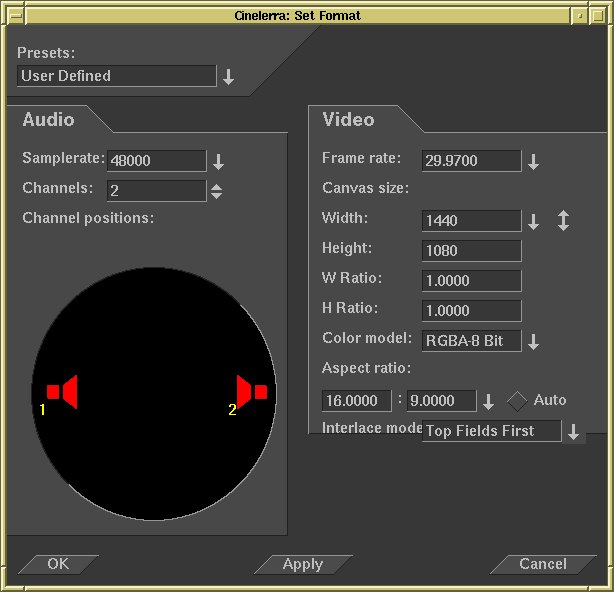
Then open the toc files. After you are done with editing, the project needs to be rendered. To do this create a small script called pipe-hd containing the following commands
#!/bin/sh
yuvcorrect -T INTERLACED_TOP_FIRST |
yuvdenoise -g 0,0,0 -t 8,12,12 -M 0,0,0 |
mpeg2enc --no-constraints -f3 -nn \
	-a3 -Ktmpgenc -lh -b18000 -V488 -r32 -G18 -q9 -s -o $1
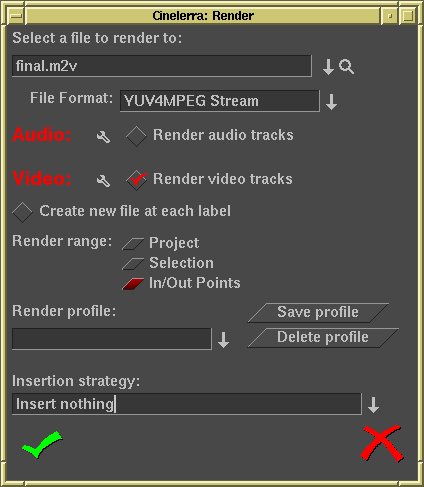
make it executable and put it in your path. Then select File->Render and choose the YUV4MPEG Stream. Click on the Video rendering options wrench and select use pipe with pipe-hd % as the name of the script. This will render the video. Now render the audio by selecting File->Render and choosing Microsoft WAV as the file format. Screen grabs are


Encode the audio track and the multiplex the video and audio together using the commands
$ mp2enc < final.wav -o final.m2a
$ mplex -f8 -b488 -r20000 final.m2v final.m2a -o final-hd.mpg
You now have a HD mpeg2 stream that can be turned into a VOB file by dvdauthor and written to a DVD.
Suppose that logo.mpg and final-sd.mpg are standard definition mpeg2 files and final-hd.mpg is the HD mpeg2 file created earlier. Let menu0.mpg and menu1.mpg be standard definition menus with two buttons each. Then the xml file dvd.xml given by
<dvdauthor>
    <vmgm>
        <menus>
            <video aspect="4:3" />
            <pgc entry="title">
                <vob file="logo.mpg" />
                <post>jump menu 2;</post>
            </pgc>
            <pgc>
                <vob file="menu0.mpg" />
                <button>jump titleset 1 menu;</button>
                <button>jump titleset 2 menu;</button>
            </pgc>
        </menus>
    </vmgm>
    <titleset>
        <menus>
            <video aspect="4:3" />
            <pgc entry="root">
                <vob file="menu1.mpg" />
                <button>jump vmgm menu 2;</button>
                <button>jump title 1 chapter 1;</button>
            </pgc>
        </menus>
        <titles>
            <video aspect="16:9" />
            <pgc>
                <vob file="final-hd.mpg" />
                <post>call menu;</post>
            </pgc>
        </titles>
    </titleset>
    <titleset>
        <menus>
            <video aspect="4:3" />
            <pgc entry="root">
                <vob file="menu1.mpg" />
                <button>jump vmgm menu 2;</button>
                <button>jump title 1 chapter 1;</button>
            </pgc>
        </menus>
        <titles>
            <video aspect="16:9" />
            <pgc>
                <vob file="final-sd.mpg" />
                <post>call menu;</post>
            </pgc>
        </titles>
    </titleset>
</dvdauthor>
would direct dvdauthor to include an
HD and SD version of the same video along with a menu to select
between them on a single DVD.
$ dvdauthor -o disk1 -x dvd.xml
$ growisofs -dvd-compat -dvd-video -Z/dev/dvd disk1
If you stay away from the HD title the disk will work fine in a standard definition DVD player. If you select the HD title on a standard definition DVD player you will either get sound only, a lockup or nothing at all. If you place the disk in a Toshiba HD DVD player you can play both the HD and SD content. VLC will also play the HD content on a reasonably fast computer.